

TUN 模式#
对于不遵循系统代理的软件,TUN 模式可接管其流量并由 CFW 处理;在 Windows 上 TUN 性能优于 TAP。
小心
近期多数浏览器默认开启「安全 DNS」,会干扰 TUN 对 DNS 的劫持导致反推域名失败,请在浏览器中关闭该功能以保证 TUN 正常。
Windows#
启动 TUN 模式需要进行如下操作:
在 General 中点击 Service Mode 右侧 Manage,在弹出窗口中安装服务模式,安装完成后应用会自动重启,Service Mode 旁地球图标变为绿色即成功(无法安装见常见问题)。
在 General 中打开 TUN Mode 开关。
备注
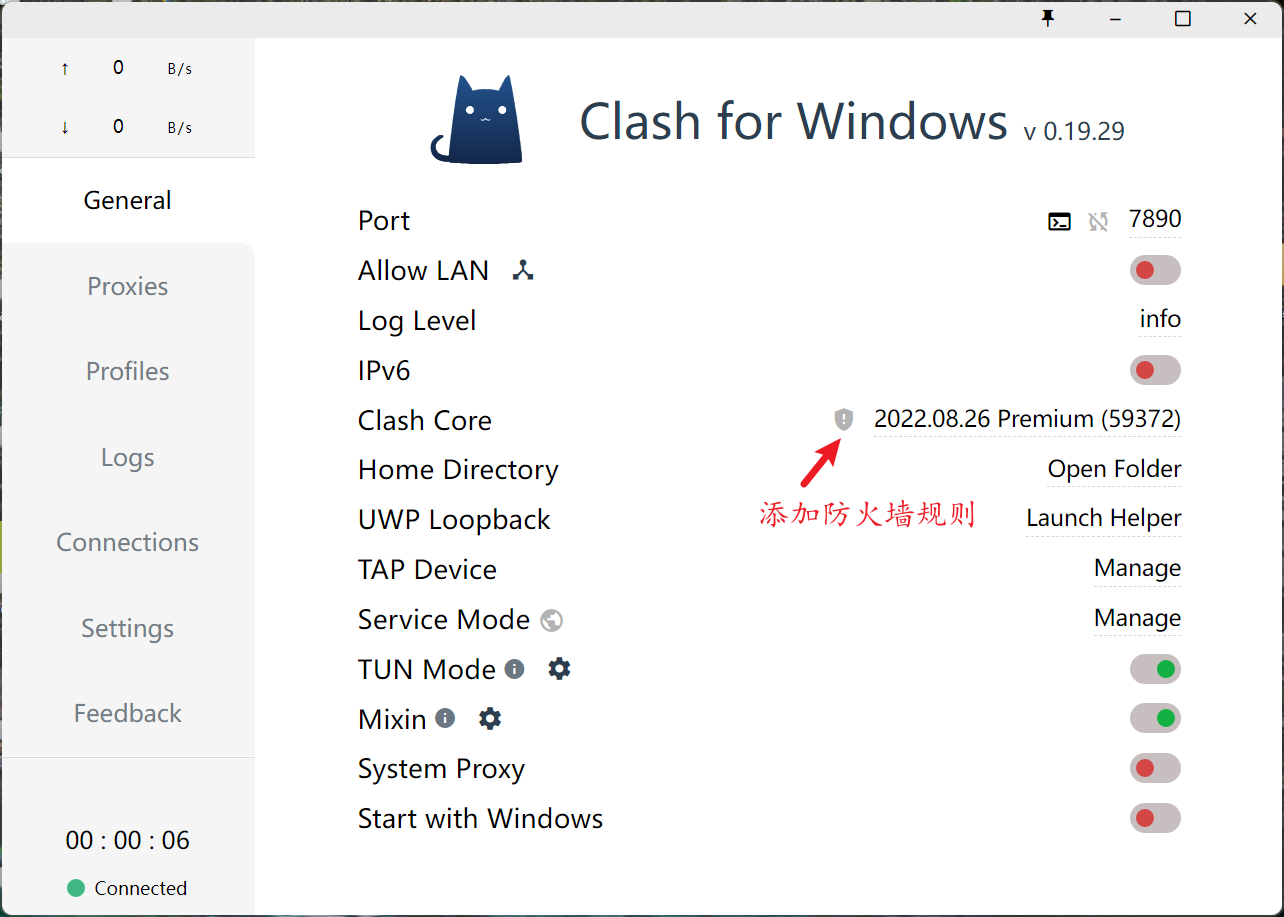
若以 system 作为 TUN stack,需在系统防火墙中放行 clash core,方法如下:
0.19.27 及以上版本中,点击 Clash Core 版本号前的图标,在 UAC 弹窗(若有)中允许运行,CFW 将自动配置防火墙规则;配置成功后该图标作为指示灯亮起。
备注
由于查询防火墙权限受限等原因,指示灯可能无法正常工作,请以系统防火墙列表及 Clash 网卡运行状态为准。
这里提供一个可用于自查的 PowerShell 脚本(可能需要管理员权限):
解释
#Requires -Version 3
#Requires -Modules NetSecurity

$List = Get-NetFirewallRule -Enabled True -Action Allow -Description 'Work with Clash for Windows.' | Where-Object { 'Clash Core' -eq $_.DisplayName }
$Report = foreach ($Rule in $List)
{
    $Program = (Get-NetFirewallApplicationFilter -AssociatedNetFirewallRule $Rule).Program

    [pscustomobject] @{
        Enabled     = $Rule.Enabled
        Action      = $Rule.Action
        Protocol    = (Get-NetFirewallPortFilter -AssociatedNetFirewallRule $Rule).Protocol
        Program     = $Program
        IsPathValid = Test-Path -PathType Leaf -LiteralPath $Program
    }
}
$Report
Pause
以 x86-64 为例,若输出类似以下则规则已添加(请自行核对 Program 路径):
Enabled     : True
Action      : Allow
Protocol    : TCP
Program     : C:\Program Files\Clash for Windows\resources\static\files\win\x64\clash-win64.exe
IsPathValid : True

Enabled     : True
Action      : Allow
Protocol    : UDP
Program     : C:\Program Files\Clash for Windows\resources\static\files\win\x64\clash-win64.exe
IsPathValid : True
macOS#
启动 TUN 模式需要进行如下操作:
在 General 中点击 Service Mode 右侧 Manage 安装服务模式,安装完成后应用会自动重启,地球图标变绿即成功。
在 General 中打开 TUN Mode 开关。
小技巧
若要将此 Mac 作为代理网关,可开启 IP 转发:
sudo sysctl -w net.inet.ip.forwarding=1
该设置重启后失效。若需持久化,可编辑 /etc/sysctl.conf 并添加:
net.inet.ip.forwarding=1
net.inet6.ip6.forwarding=1
或者使用 LaunchDaemons 进行配置:
新建
network.forwarding.plist
<?xml version="1.0" encoding="UTF-8"?>
<!DOCTYPE plist PUBLIC "-//Apple//DTD PLIST 1.0//EN" "http://www.apple.com/DTDs/PropertyList-1.0.dtd">
<plist version="1.0">
<dict>
    <key>Label</key>
    <string>Network Forwarding</string>
    <key>UserName</key>
    <string>root</string>
    <key>GroupName</key>
    <string>wheel</string>
    <key>ProgramArguments</key>
    <array>
        <string>/usr/sbin/sysctl</string>
        <string>-w</string>
        <string>net.inet.ip.forwarding=1</string>
        <string>net.inet6.ip6.forwarding=1</string>
    </array>
    <key>KeepAlive</key>
    <false/>
    <key>RunAtLoad</key>
    <true/>
</dict>
</plist>
将文件放入
/Library/LaunchDaemons执行
sudo launchctl load /Library/LaunchDaemons/network.forwarding.plist
Linux#
启动 TUN 模式需要进行如下操作:
在 General 中点击 Service Mode 右侧 Manage 安装服务模式,安装完成后应用会自动重启(部分系统需手动重启),地球图标变绿即成功。
在 General 中打开 TUN Mode 开关。
配置文件参考#
备注
若习惯用代码启动,也可通过 mixin 做其他配置。