

安装 Windows WSL 子系统#
WSL2 子系统#
将 WSL 版本设置为 1 或 2
wsl --set-version <distribution name> <versionnumber>
设置默认 WSL 版本
wsl --set-default-version <version>
设置默认 Linux 发行版
wsl --set-default <distribution name>
将目录更改为主页
wsl ~
更新 WSL
wsl --update
检查 WSL 状态
wsl --status
检查 WSL 版本
wsl --version
安装步骤#
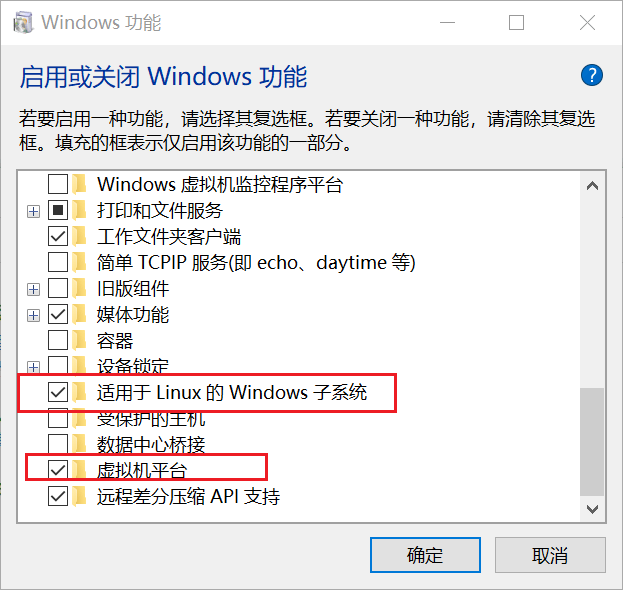
启动WSL
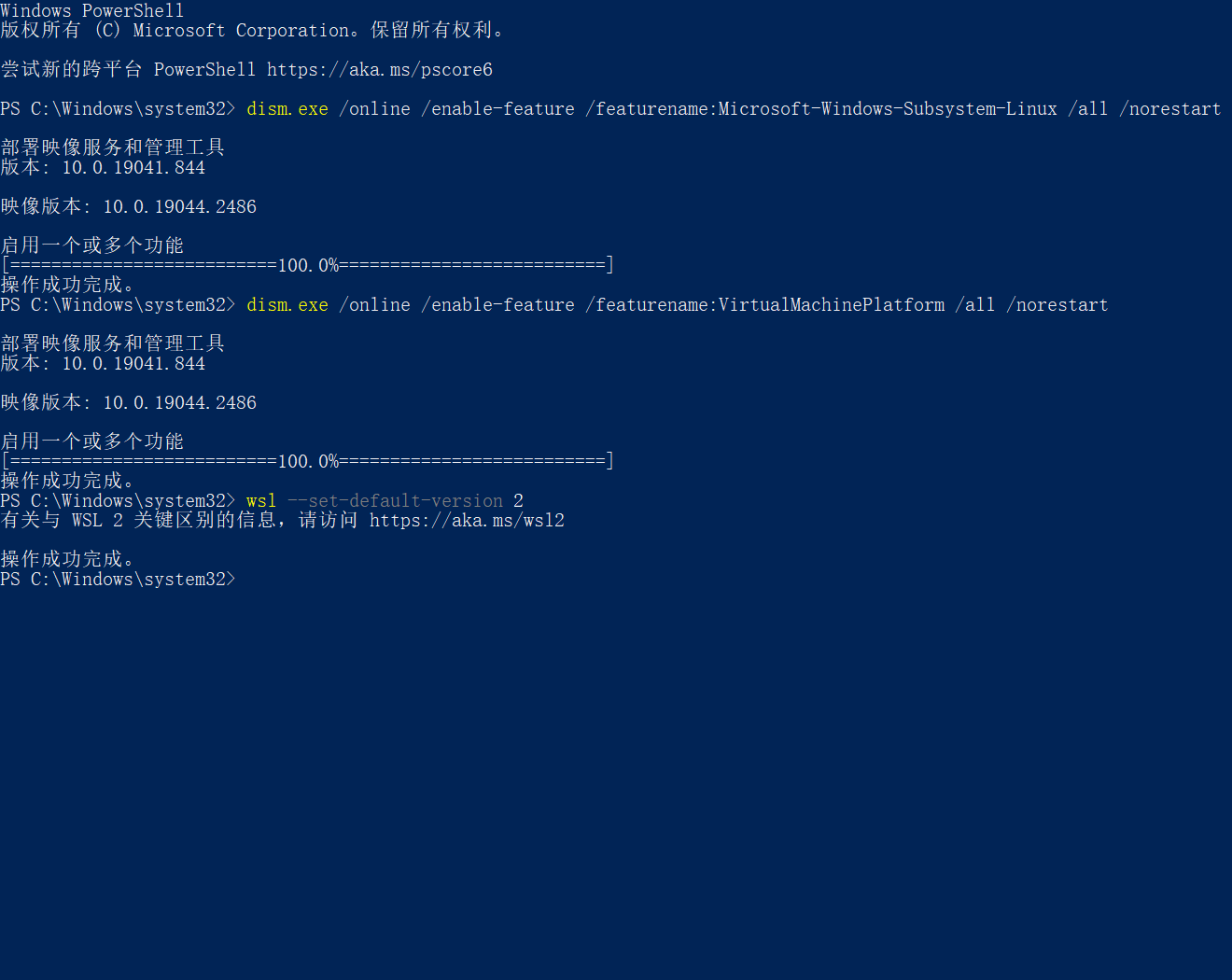
以管理员身份打开 PowerShell 工具并运行以下命令。
dism.exe /online /enable-feature /featurename:Microsoft-Windows-Subsystem-Linux /all /norestart
启用“虚拟机平台”
dism.exe /online /enable-feature /featurename:VirtualMachinePlatform /all /norestart
下载 Linux 内核更新包
设置 WSL 2 为默认值
wsl --set-default-version 2
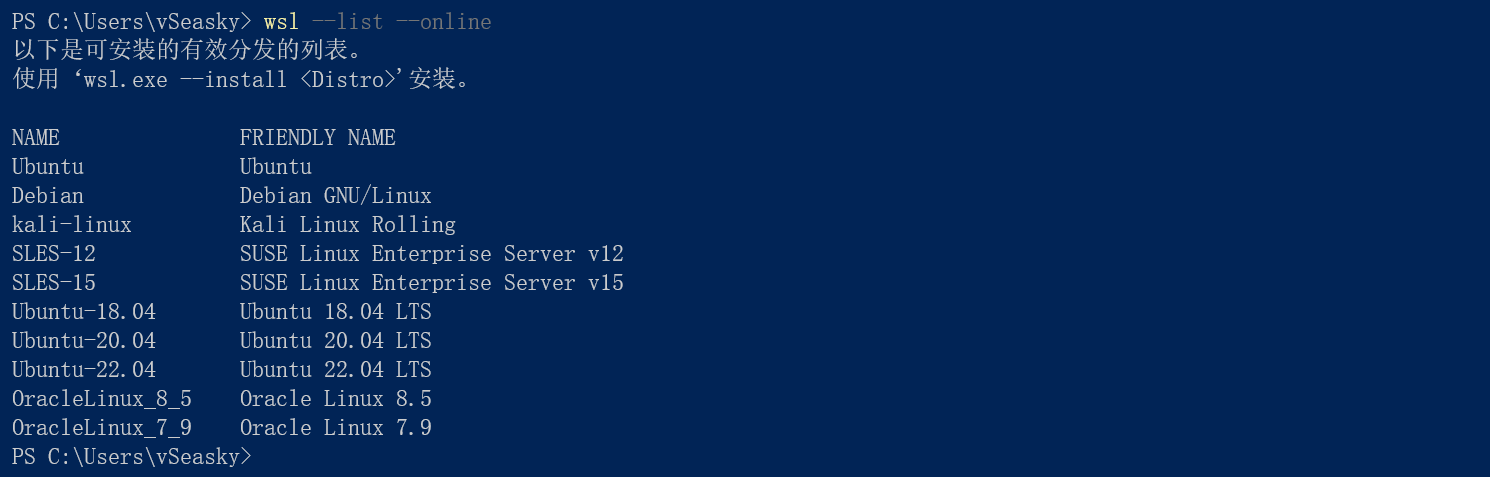
查询可以安装的 Linux 版本
wsl --list --online
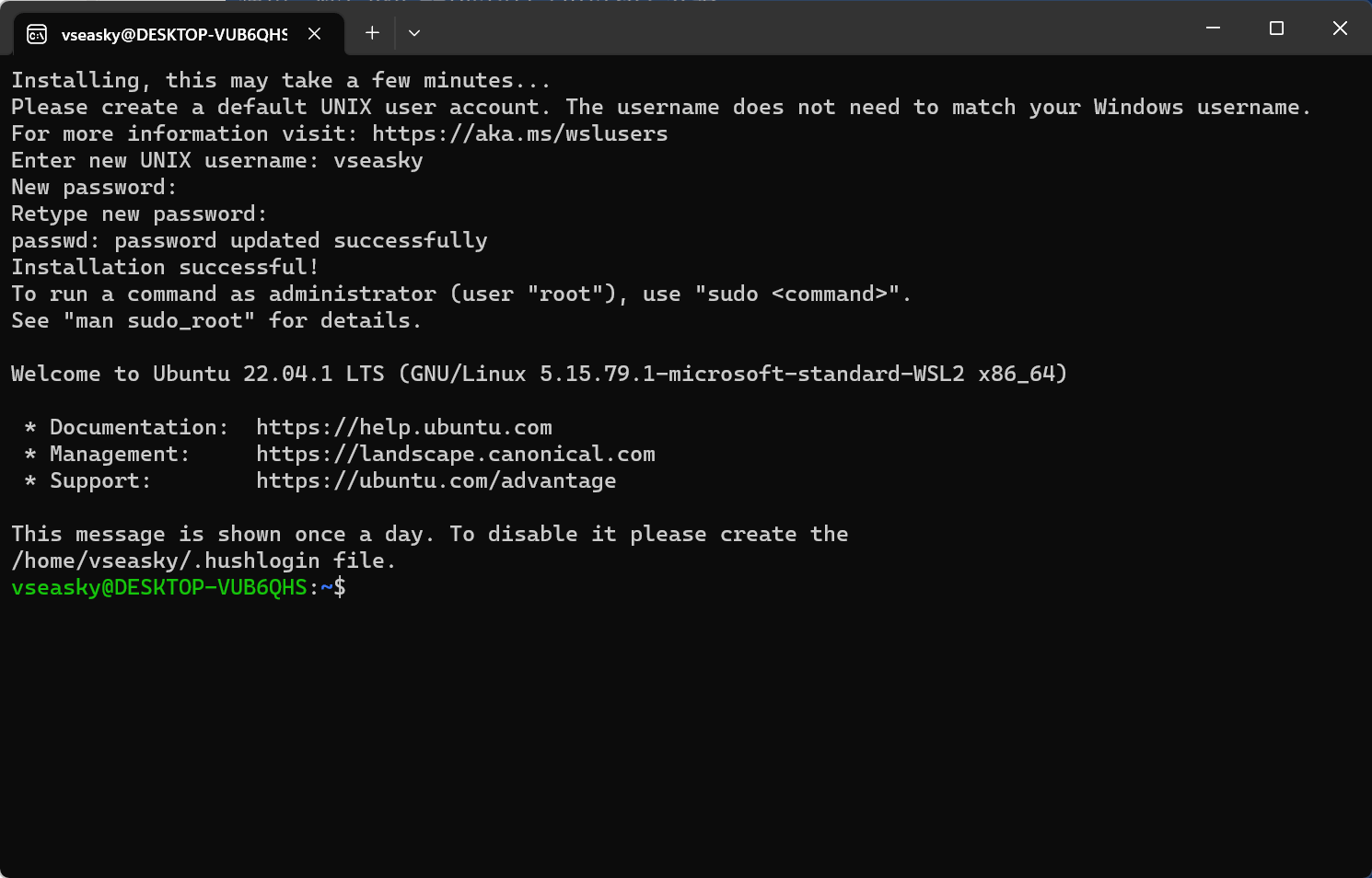
安装需要的版本
wsl --install -d Ubuntu-20.04
查询安装的版本
wsl --list --verbose

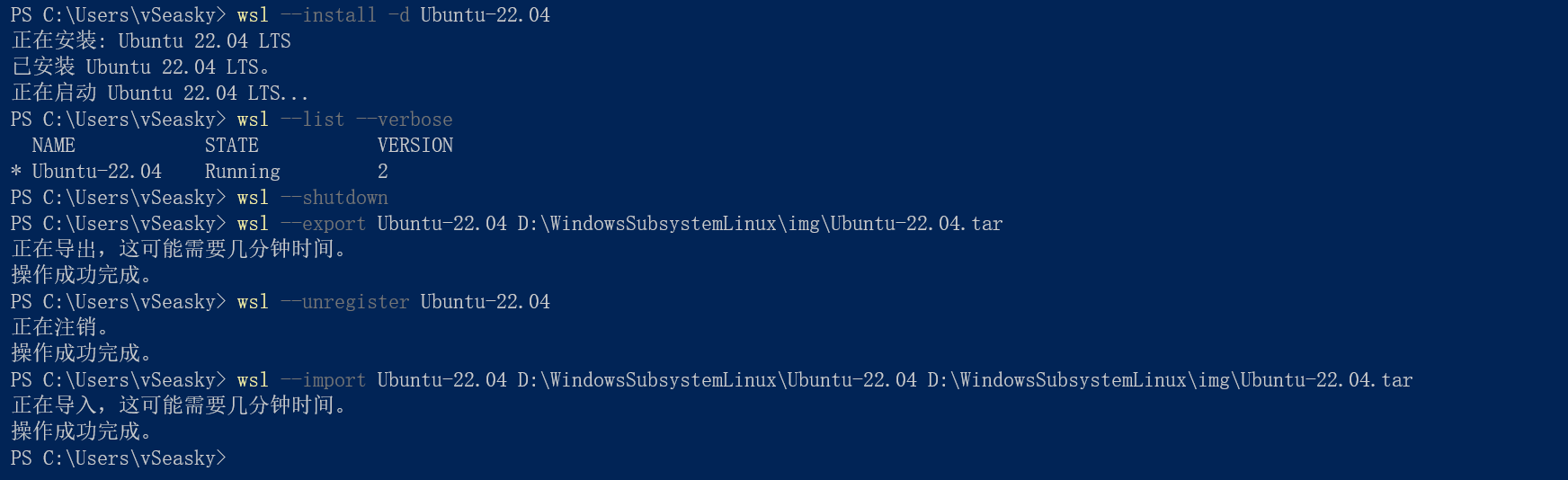
把子系统迁移到D盘指定位置#
关闭wsl
wsl --shutdown
导出Ubuntu-22.04LTS
wsl --export Ubuntu-20.04 D:\WindowsSubsystemLinux\img\Ubuntu-20.04.tar
卸载当前Ubuntu-22.04LTS
wsl --unregister Ubuntu-20.04
导入刚才导出的的Ubuntu-22.04.tar
wsl --import Ubuntu-20.04 D:\WindowsSubsystemLinux\Ubuntu-20.04 D:\WindowsSubsystemLinux\img\Ubuntu-20.04.tar
设置默认用户
ubuntu2004 config --default-user your-name
开启或停止服务
# 停止服务
net stop LxssManager
# 启动服务
net start LxssManager
换源 --
备份镜像源源文件
sudo cp /etc/apt/sources.list /etc/apt/sources.list.bak
用 vi 编辑器打开源文件
sudo vi /etc/apt/sources.list
更改镜像源
#  阿里源
deb http://mirrors.aliyun.com/ubuntu/ bionic main restricted universe multiverse
deb http://mirrors.aliyun.com/ubuntu/ bionic-security main restricted universe multiverse
deb http://mirrors.aliyun.com/ubuntu/ bionic-updates main restricted universe multiverse
deb http://mirrors.aliyun.com/ubuntu/ bionic-proposed main restricted universe multiverse
deb http://mirrors.aliyun.com/ubuntu/ bionic-backports main restricted universe multiverse
deb-src http://mirrors.aliyun.com/ubuntu/ bionic main restricted universe multiverse
deb-src http://mirrors.aliyun.com/ubuntu/ bionic-security main restricted universe multiverse
deb-src http://mirrors.aliyun.com/ubuntu/ bionic-updates main restricted universe multiverse
deb-src http://mirrors.aliyun.com/ubuntu/ bionic-proposed main restricted universe multiverse
deb-src http://mirrors.aliyun.com/ubuntu/ bionic-backports main restricted universe multiverse
# 清华源
#deb https://mirrors.tuna.tsinghua.edu.cn/ubuntu/ bionic main restricted universe multiverse
#deb-src https://mirrors.tuna.tsinghua.edu.cn/ubuntu/ bionic main restricted universe multiverse
#deb https://mirrors.tuna.tsinghua.edu.cn/ubuntu/ bionic-updates main restricted universe multiverse
#deb-src https://mirrors.tuna.tsinghua.edu.cn/ubuntu/ bionic-updates main restricted universe multiverse
#deb https://mirrors.tuna.tsinghua.edu.cn/ubuntu/ bionic-backports main restricted universe multiverse
#deb-src https://mirrors.tuna.tsinghua.edu.cn/ubuntu/ bionic-backports main restricted universe multiverse
#deb https://mirrors.tuna.tsinghua.edu.cn/ubuntu/ bionic-security main restricted universe multiverse
#deb-src https://mirrors.tuna.tsinghua.edu.cn/ubuntu/ bionic-security main restricted universe multiverse
#deb https://mirrors.tuna.tsinghua.edu.cn/ubuntu/ bionic-proposed main restricted universe multiverse
#deb-src https://mirrors.tuna.tsinghua.edu.cn/ubuntu/ bionic-proposed main restricted universe multiverse
#  中科大源
#deb https://mirrors.ustc.edu.cn/ubuntu/ bionic main restricted universe multiverse
#deb-src https://mirrors.ustc.edu.cn/ubuntu/ bionic main restricted universe multiverse
#deb https://mirrors.ustc.edu.cn/ubuntu/ bionic-updates main restricted universe multiverse
#deb-src https://mirrors.ustc.edu.cn/ubuntu/ bionic-updates main restricted universe multiverse
#deb https://mirrors.ustc.edu.cn/ubuntu/ bionic-backports main restricted universe multiverse
#deb-src https://mirrors.ustc.edu.cn/ubuntu/ bionic-backports main restricted universe multiverse
#deb https://mirrors.ustc.edu.cn/ubuntu/ bionic-security main restricted universe multiverse
#deb-src https://mirrors.ustc.edu.cn/ubuntu/ bionic-security main restricted universe multiverse
#deb https://mirrors.ustc.edu.cn/ubuntu/ bionic-proposed main restricted universe multiverse
#deb-src https://mirrors.ustc.edu.cn/ubuntu/ bionic-proposed main restricted universe multiverse
# See http://help.ubuntu.com/community/UpgradeNotes for how to upgrade to
# newer versions of the distribution.
deb http://archive.ubuntu.com/ubuntu/ jammy main restricted
# deb-src http://archive.ubuntu.com/ubuntu/ jammy main restricted

## Major bug fix updates produced after the final release of the
## distribution.
deb http://archive.ubuntu.com/ubuntu/ jammy-updates main restricted
# deb-src http://archive.ubuntu.com/ubuntu/ jammy-updates main restricted

## N.B. software from this repository is ENTIRELY UNSUPPORTED by the Ubuntu
## team. Also, please note that software in universe WILL NOT receive any
## review or updates from the Ubuntu security team.
deb http://archive.ubuntu.com/ubuntu/ jammy universe
# deb-src http://archive.ubuntu.com/ubuntu/ jammy universe
deb http://archive.ubuntu.com/ubuntu/ jammy-updates universe
# deb-src http://archive.ubuntu.com/ubuntu/ jammy-updates universe

## N.B. software from this repository is ENTIRELY UNSUPPORTED by the Ubuntu
## team, and may not be under a free licence. Please satisfy yourself as to
## your rights to use the software. Also, please note that software in
## multiverse WILL NOT receive any review or updates from the Ubuntu
## security team.
deb http://archive.ubuntu.com/ubuntu/ jammy multiverse
# deb-src http://archive.ubuntu.com/ubuntu/ jammy multiverse
deb http://archive.ubuntu.com/ubuntu/ jammy-updates multiverse
# deb-src http://archive.ubuntu.com/ubuntu/ jammy-updates multiverse

## N.B. software from this repository may not have been tested as
## extensively as that contained in the main release, although it includes
## newer versions of some applications which may provide useful features.
## Also, please note that software in backports WILL NOT receive any review
## or updates from the Ubuntu security team.
deb http://archive.ubuntu.com/ubuntu/ jammy-backports main restricted universe multiverse
# deb-src http://archive.ubuntu.com/ubuntu/ jammy-backports main restricted universe multiverse

deb http://security.ubuntu.com/ubuntu/ jammy-security main restricted
# deb-src http://security.ubuntu.com/ubuntu/ jammy-security main restricted
deb http://security.ubuntu.com/ubuntu/ jammy-security universe
# deb-src http://security.ubuntu.com/ubuntu/ jammy-security universe
deb http://security.ubuntu.com/ubuntu/ jammy-security multiverse
# deb-src http://security.ubuntu.com/ubuntu/ jammy-security multiverse
更新系统源
sudo apt-get -y update && sudo apt-get -y upgrade
提示缺少公匙
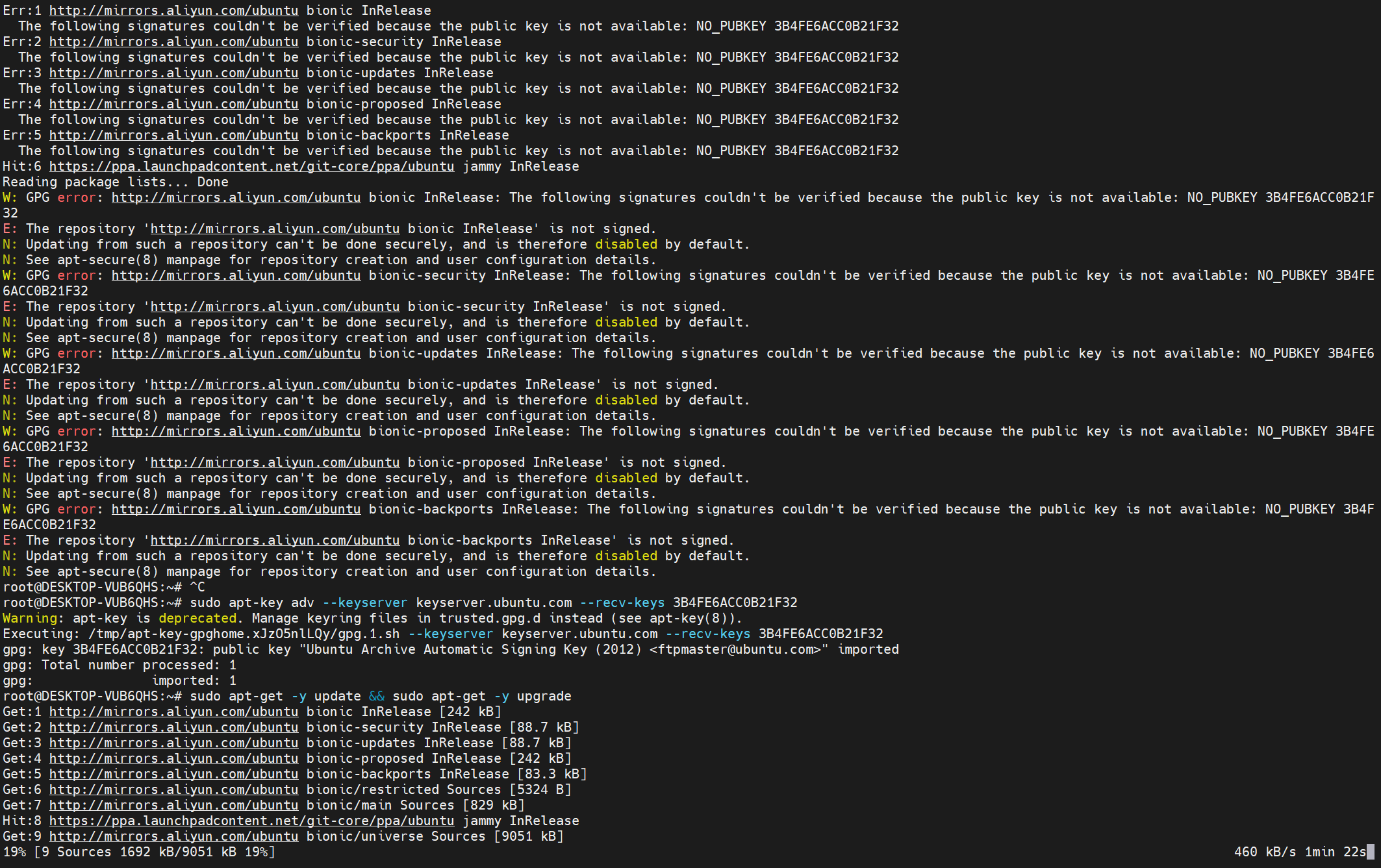
添加相应公匙后再次更新源
sudo apt-key adv --keyserver keyserver.ubuntu.com --recv-keys 3B4FE6ACC0B21F32
sudo apt-get -y update && sudo apt-get -y upgrade
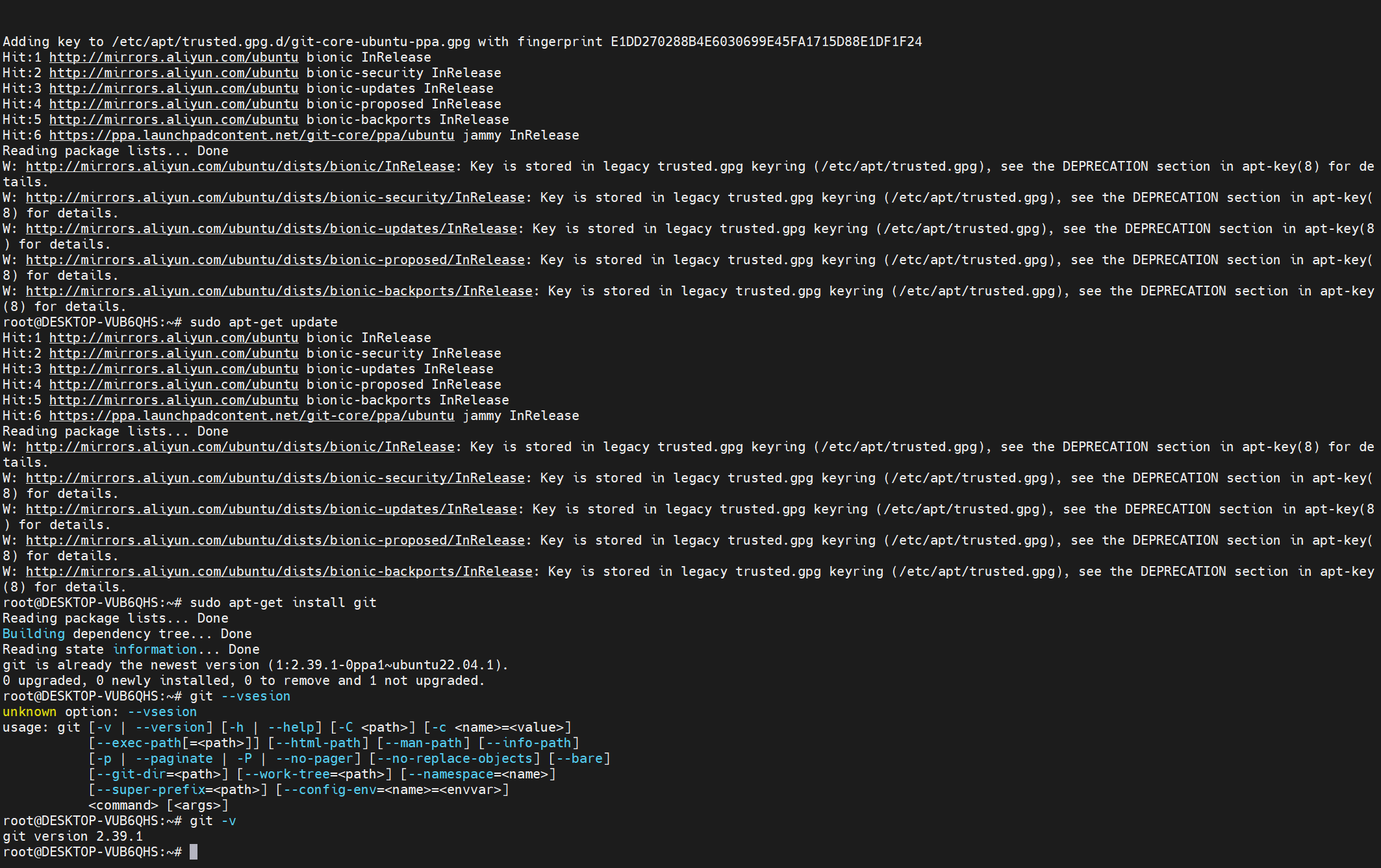
更新git
sudo apt-get install git
sudo add-apt-repository ppa:git-core/ppa
sudo apt-get update
sudo apt-get install git
桌面安装#
你需要使用 Windows 10 内部版本 19044+ 或 Windows 11 才能访问此功能
已安装适用于 vGPU 的驱动程序
按需求安装
sudo apt install gedit -y
sudo apt install gimp -y
sudo apt install vlc -y
安装 Gedit
Gedit 是 GNOME 桌面环境的默认文本编辑器。
sudo apt install gedit -y
若要在编辑器中启动 bashrc 文件,请输入:gedit ~/.bashrc
安装 GIMP
GIMP 是一种免费的开源光栅图形编辑器,用于图像操作和图像编辑、自由形态绘图、不同图像文件格式之间的转码,以及更专业的任务。
sudo apt install gimp -y
若要启动,请输入:gimp
安装 Nautilus
Nautilus 也称为 GNOME Files,是 GNOME 桌面的文件管理器。 (类似于 Windows 文件资源管理器)。
sudo apt install nautilus -y
若要启动,请输入:nautilus
安装 VLC
VLC 是一种免费的开源跨平台多媒体播放器和框架,可播放大多数多媒体文件。
sudo apt install vlc -y
若要启动,请输入:vlc
安装 X11 应用
X11 是 Linux 窗口管理系统,这是随它一起提供的各种应用和工具的集合,例如 xclock、xcalc 计算器、用于剪切和粘贴的 xclipboard、用于事件测试的 xev 等。
sudo apt install x11-apps -y
若要启动,请输入要使用的工具的名称。 例如:xcalc, xclock, xeyes
安装适用于 Linux 的 Google Chrome
cd /tmp
sudo wget https://dl.google.com/linux/direct/google-chrome-stable_current_amd64.deb
sudo dpkg -i google-chrome-stable_current_amd64.deb
sudo dpkg -i google-chrome-stable_current_amd64.deb
sudo dpkg -i google-chrome-stable_current_amd64.deb
安装适用于 Linux 的 Microsoft Teams
cd /tmp
sudo curl -L -o "./teams.deb" "https://teams.microsoft.com/downloads/desktopurl?env=production&plat=linux&arch=x64&download=true&linuxArchiveType=deb"
sudo apt install ./teams.deb -y
安装适用于 Linux 的 Microsoft Edge 浏览器